The photo is good. The outfit is wrong. Maybe the client wants the dress in navy instead of green, maybe your store sells the same shirt in 8 colors and you photographed one, or maybe the red top that looked great in the fitting room reads orange on camera. You need to change the colour of clothes in a picture you already have, and spelling it color changes nothing about the problem, so this guide uses both and moves on.
The fix takes about a minute now. An AI editor regenerates just the garment in a new shade while the fabric's folds, seams, and shadows stay where the camera put them. Below: a free browser tool tested on a real photo, the prompt patterns that keep texture intact, an API route for sellers who need every colorway of a SKU, and the cases where recoloring still falls apart.
Key Takeaways
- AI recoloring rebuilds just the garment in the new color while keeping folds, shadows, and fabric texture, so the result still looks shot in camera.
- You can change clothes color online free on Atlas Cloud: upload a photo, restate the outfit in its new shade, download the result.
- Name the exact color and the garment in your prompt; vague words like "darker" or "nicer" produce inconsistent results.
- Sellers can turn one product photo into a full set of color variants through the Atlas Cloud API instead of reshooting each SKU.
- Traditional photo editors still handle plain solid-color clothes fine; AI wins on patterns, texture, and batch volume.
A Clothes Color Changer Is Not a Hue Slider
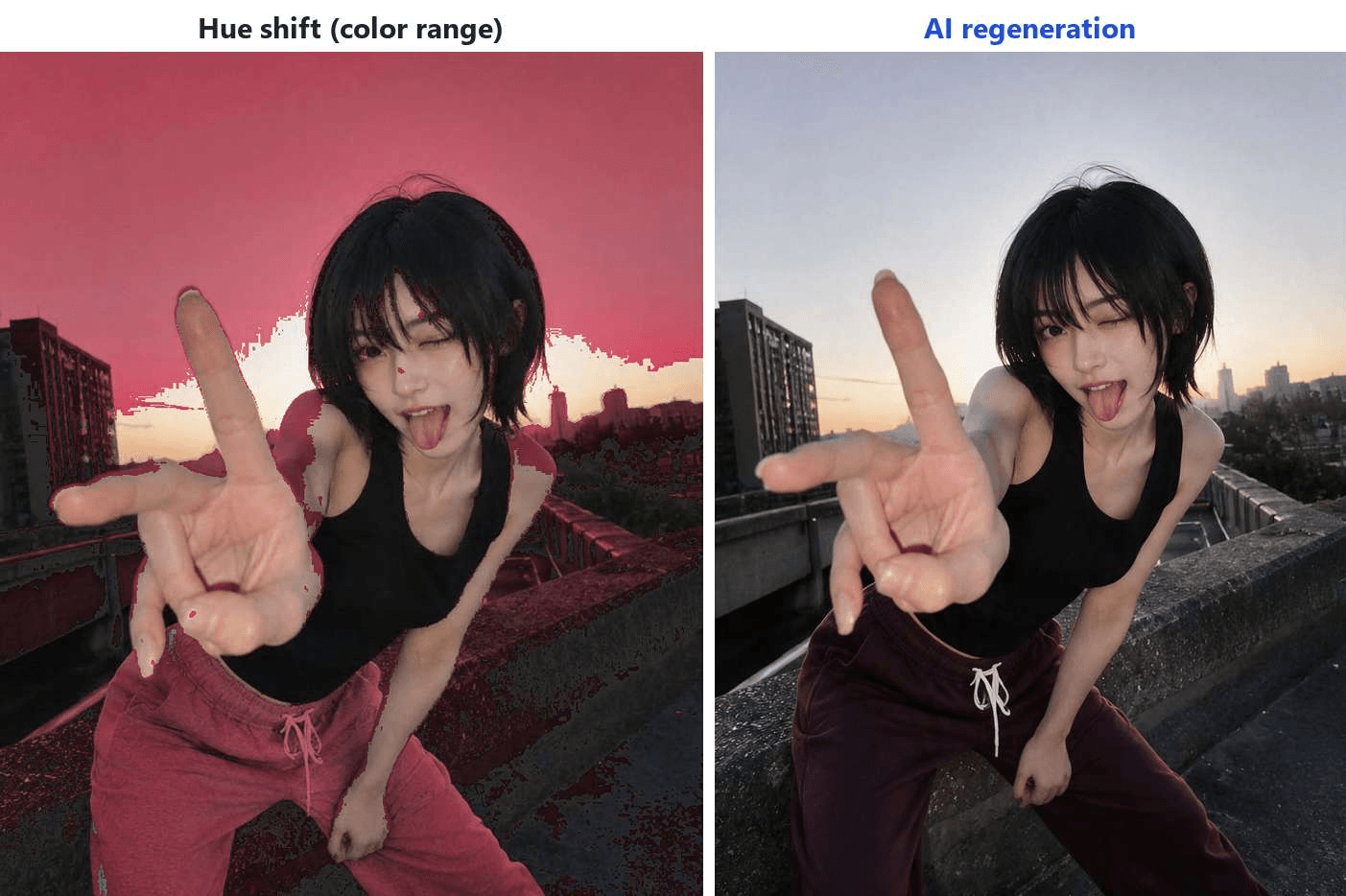
Photo editors have offered some version of select-the-shirt, drag-the-hue for decades. That approach remaps existing pixel values, which is why it works on a flat cotton tee and falls apart on anything with sheen, deep shadow, or a white or black base. There are no hue values in a white shirt to remap.
A modern clothes color changer works differently. The model reads the photo, identifies the garment, and regenerates that region from scratch in the color you asked for. Because it redraws rather than remaps, it can take a white blouse to burgundy, a change a hue slider cannot even start, and keep the highlight rolling across a satin sleeve while it does. Since only the clothing region is rebuilt, the person, pose, lighting direction, and background normally come through untouched.
That difference decides which tool fits which job, and a comparison further down maps it case by case.
Change Clothes Color Online Free with Atlas Cloud
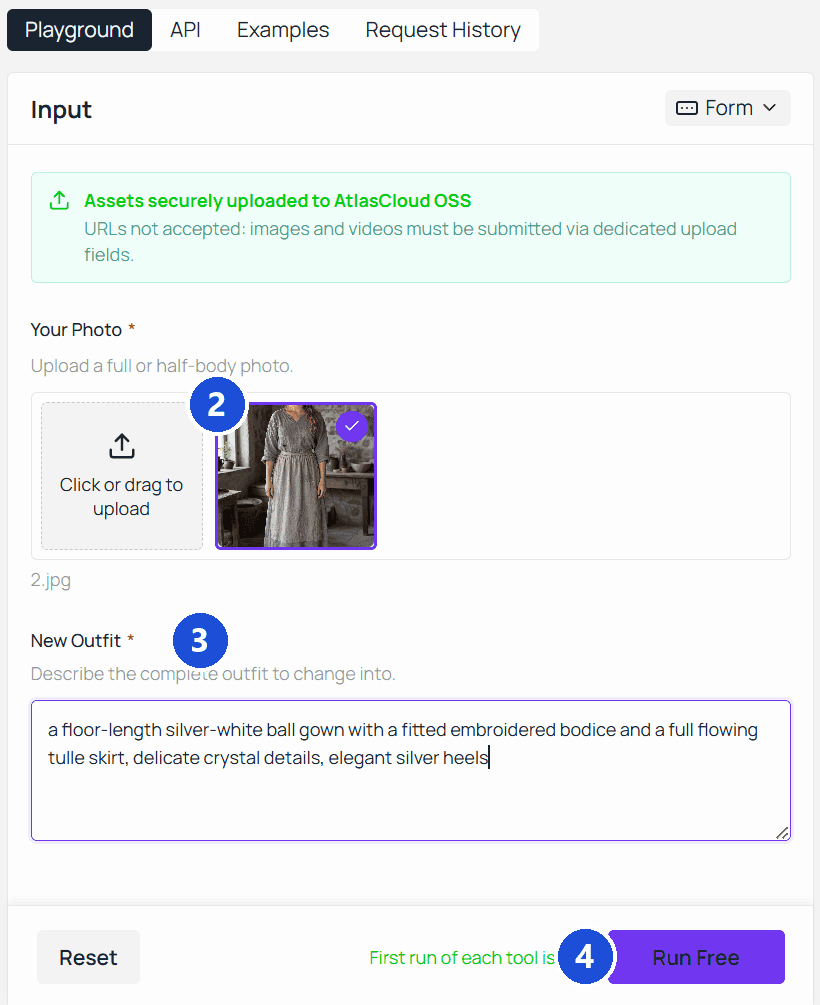
Here is what AI recoloring looks like on a real photo.
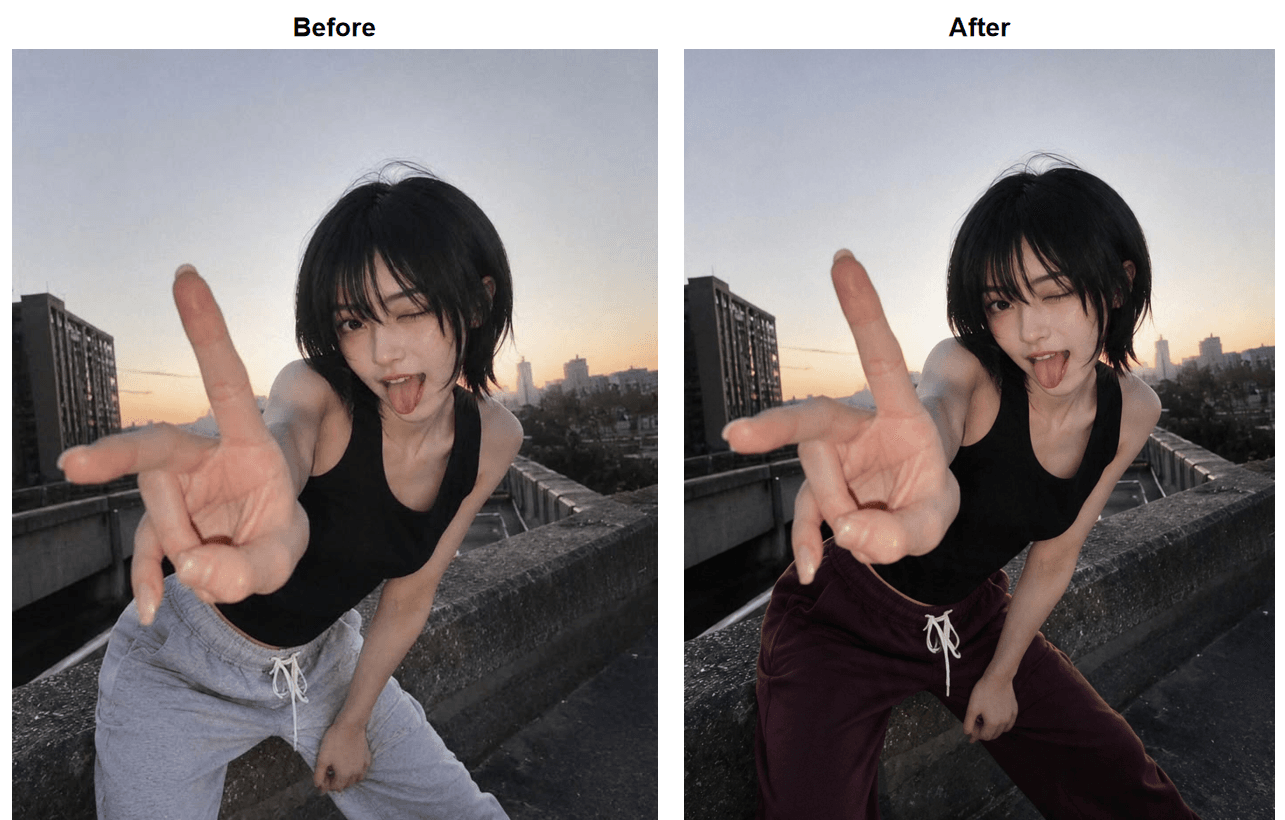
The tool behind it is Free Change Clothes AI, one of the single-page AI tools that Atlas Cloud runs alongside its hosted model catalog. It is built for describing an outfit in a sentence and letting the model restyle the photo around it, and recoloring is the simplest version of that job. By the page's own wording, "Your first generation is free, at the same full resolution as any paid run," activated by a quick sign in with Google, GitHub, or email. One detail worth flagging: the test photo is dusk backlight, not the even front light the steps below recommend, and the recolor still held.
Change Clothes Color in a Photo Online Free: 4 Steps
- Upload the photo. The photo field asks for a full or half-body shot, as JPG, PNG, or WebP up to 10MB. Even, front-facing light gives the model the most fabric detail to work with.
- Describe the finished look in the outfit field. The field wants the outfit you are changing into, so a recolor is the same garment restated in the new shade. The test entry: "the same black tank top, and the same grey sweatpants but in deep burgundy, same drawstring, same loose fit."
- Press Run Free. The page quotes roughly 40 seconds per render.
- Compare and download. Results come back at 1328 by 1776 with no watermark. Check the edges where fabric meets skin and background before saving.
Prompts That Keep Fabric Texture During a Clothing Color Change
Where you type decides how you phrase it. The free tool's outfit field expects a description of the finished look, which is why step 2 restates the garment in its new shade. Editing models driven through a prompt box or the API take instructions instead, and those have a fixed anatomy: name the garment as it appears now, name the target color precisely, and say what must not move. Naming the current garment stops the model from repainting a jacket you wanted left alone. A precise color name beats a vague one because "darker" or "warmer" gets reinterpreted on every run, while "charcoal grey" lands the same way twice. The keep-list is what protects texture.
Three instruction patterns that cover most jobs:
- Solid to solid: "Change the grey sweatpants to mustard yellow. Keep the black tank top, the drawstring, the pose, the lighting, and the background unchanged."
- Protecting a pattern: "Change only the background color of the striped shirt from white to light blue. Keep the navy stripes, their width, and their spacing exactly as they are."
- Multiple garments, one target: "Change the blazer to camel brown. Do not change the trousers, the shirt underneath, or the shoes."
One warning. The model follows the sentence you wrote, not the one you meant, so a prompt that never mentions the trousers leaves the model free to reinterpret them. Say what stays.
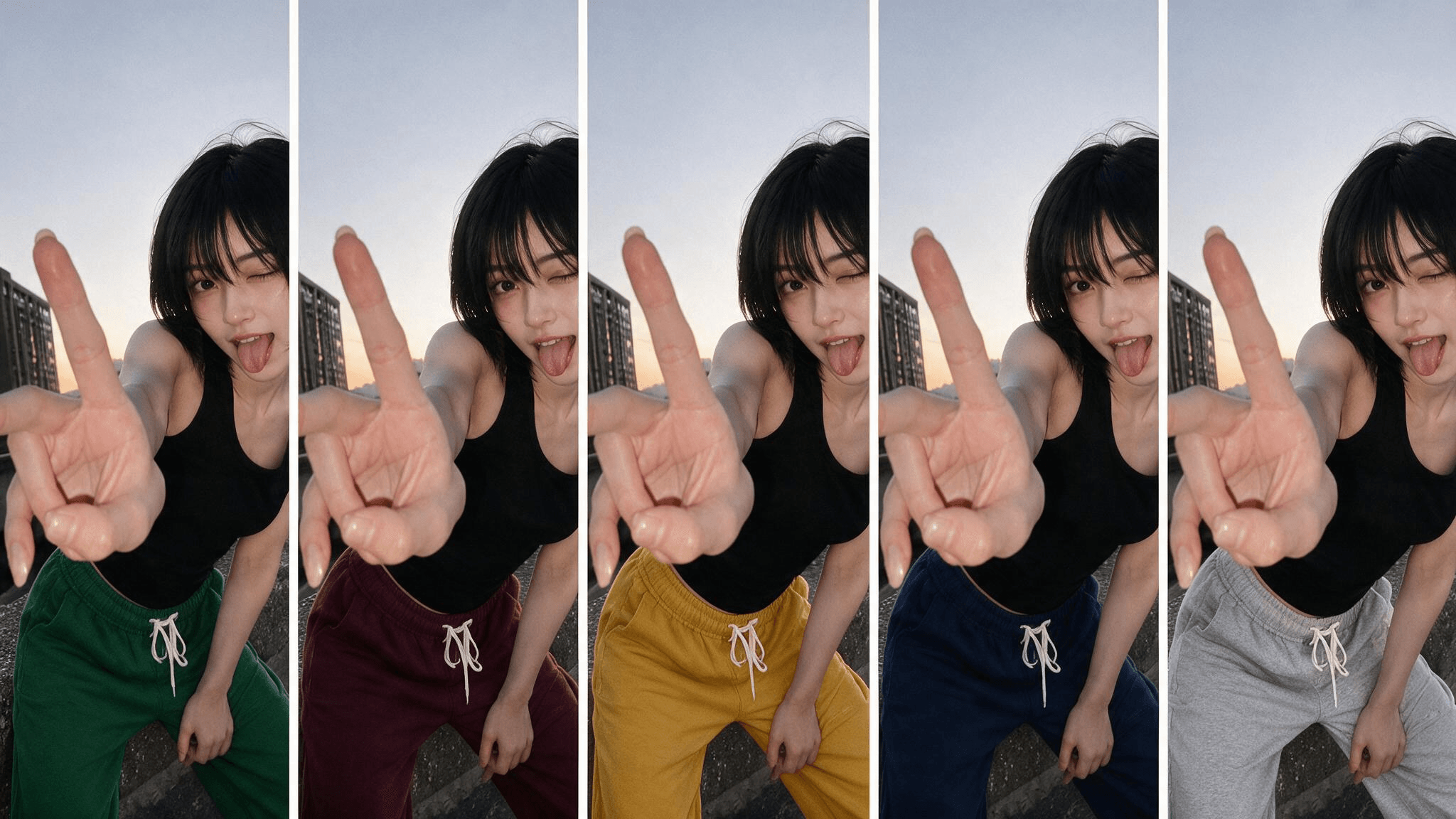
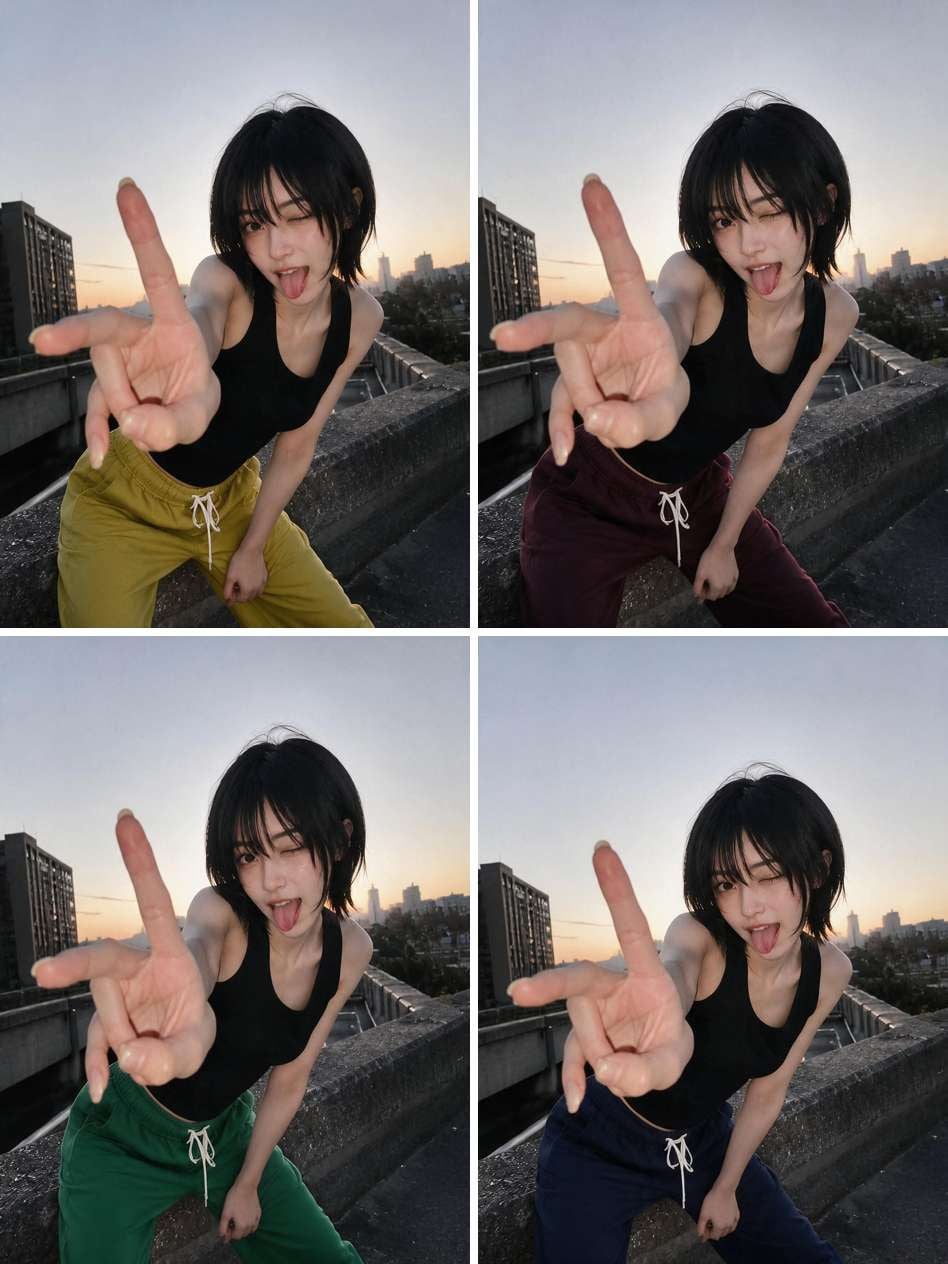
The grid below is the first pattern run 4 times against the rooftop test photo, straight from the browser playground on the Seedream v5.0 Pro Edit model page, swapping only the color words: mustard yellow, deep burgundy, forest green, deep navy blue. No code involved at this stage: upload the photo, type the instruction, run.
Batch Color Variants for Sellers via the API
The single-photo workflow above stops making sense at scale. A store listing one shirt in 8 colorways needs 8 consistent product photos, and the same recolor job runs programmatically against Seedream v5.0 Pro Edit, an image editing model on Atlas Cloud's catalog that takes a plain-language instruction against a source photo.
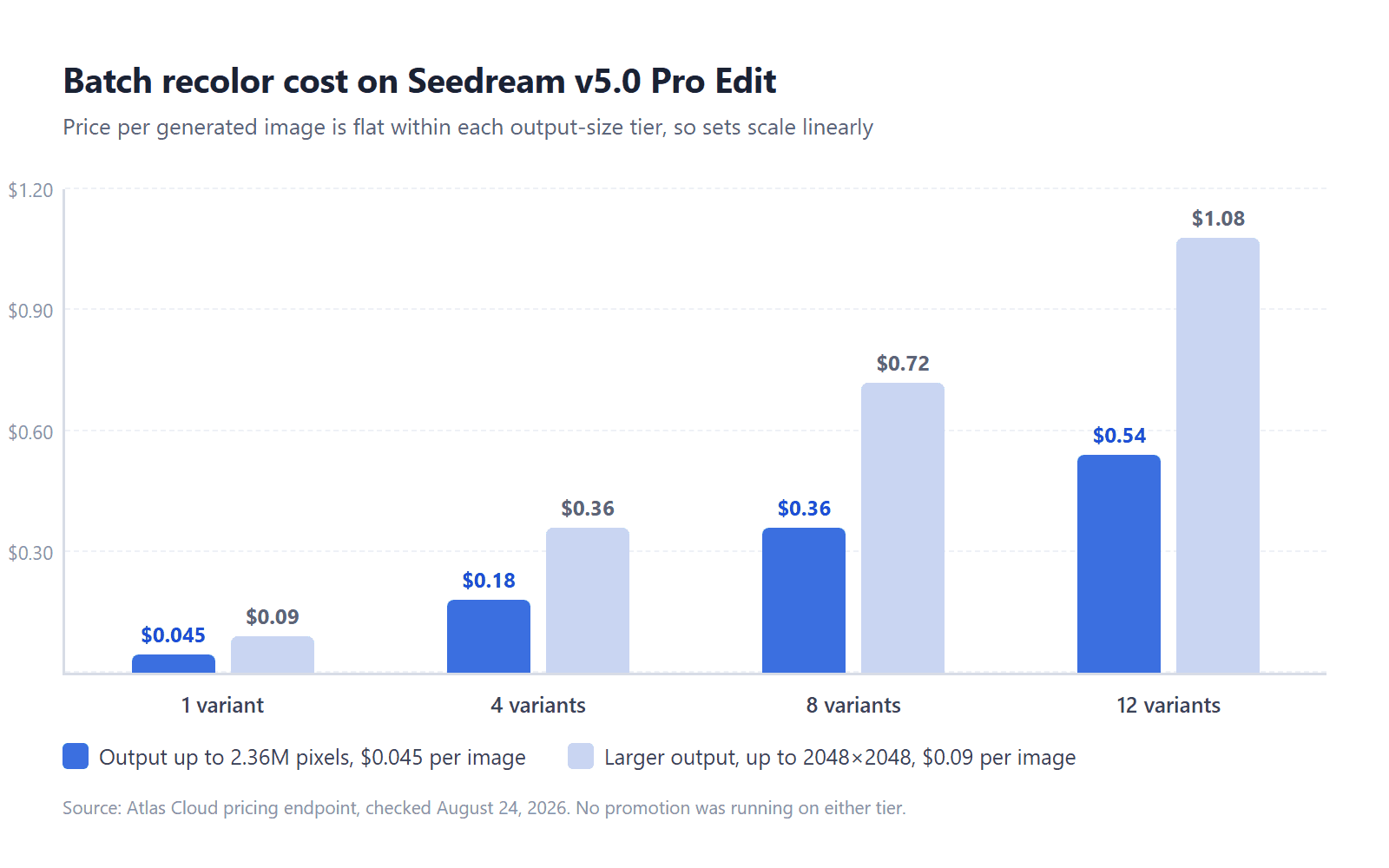
Three steps. First, create an API key in the Atlas Cloud console. Second, check the request format: the model takes a prompt, an images array with your source photo's URL, and a size from a fixed list; per its schema, output at or under 2.36 million pixels bills at $0.045 per image, larger sizes at $0.09, with no promotion running on either tier as of August 2026. Third, send one request per colorway and poll for results:
plaintext1for COLOR in "deep navy blue" "burgundy" "forest green" "charcoal grey"; do 2curl -X POST https://api.atlascloud.ai/api/v1/model/generateImage \ 3 -H "Content-Type: application/json" \ 4 -H "Authorization: Bearer $ATLASCLOUD_API_KEY" \ 5 -d '{ 6 "model": "bytedance/seedream-v5.0-pro/edit", 7 "prompt": "Change the shirt to '"$COLOR"'. Keep the fit, folds, stitching, lighting, and background exactly as in the original product photo.", 8 "images": ["https://your-cdn.com/product-shot.jpg"], 9 "size": "1328*1776" 10 }' 11done
Each call returns a prediction ID. Poll /api/v1/model/prediction/<PREDICTION_ID> on the same host with the same key until status reads completed, then collect the hosted image URL from outputs. At the 1328 by 1776 size in the example, a full 8-colorway set costs $0.36, and the identical prompt scaffold across every call is what keeps the set looking like one photoshoot rather than 8.
For garment swaps that go beyond color, the same endpoint takes a second reference image; our AI outfit swap guide documents that workflow with test evidence.
Photo Editor or AI Clothes Color Changer: Which One for Which Job
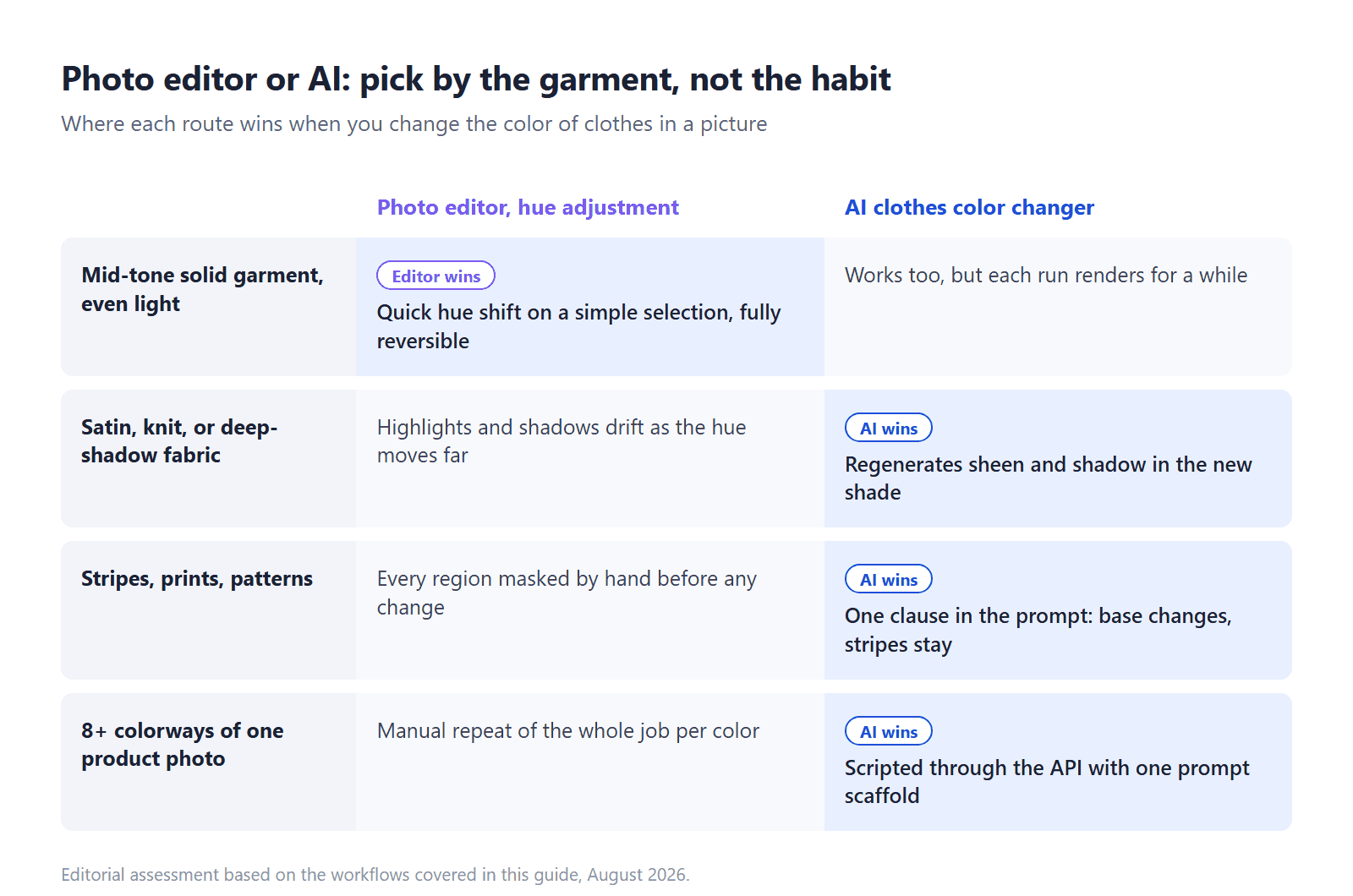
Question is: when should you still open a regular photo editor instead? There are real cases. Desktop editors give you a reversible adjustment layer, precise selections, and zero generation queue, and on a mid-tone, solid-color garment in even light, a hue adjustment is quick and predictable. Phone editing apps cover the same ground with less precision.
The trade flips as the garment gets harder. Manual selection around hair, fingers, and fabric edges is where the time goes, and it is exactly the part an AI clothes color changer skips, since the model finds the garment itself. Patterns are the other dividing line: a hue shift moves every color in the selection at once, so recoloring only the stripes, or only the base fabric, means masking each region by hand. A prompt does it in a clause. And if you were searching for an app to change clothes color, you may not need one: the AI tool is a browser page, on phones included.
If your project is bigger than recoloring, say designing garments that do not exist yet, that is a different model category; our AI clothing generator guide covers it, along with how it differs from virtual try-on.
Where Recoloring Fails and How to Fix It
Changing clothes color is one of the easier jobs in AI photo editing, which is not the same as foolproof. Three trouble spots account for most bad results, and worth saying up front: none of the three actually showed up in our test runs. Treat them as risks to prompt around, not guaranteed failures.
Color bleed. The new shade creeps into skin at the collar or into the background near loose fabric. Fix it in the prompt: "do not change the skin, hair, or background" is a keep-list item, not decoration. Persistent bleed usually means the garment boundary is genuinely ambiguous in the photo, so crop tighter or pick a frame where the edge is clean.
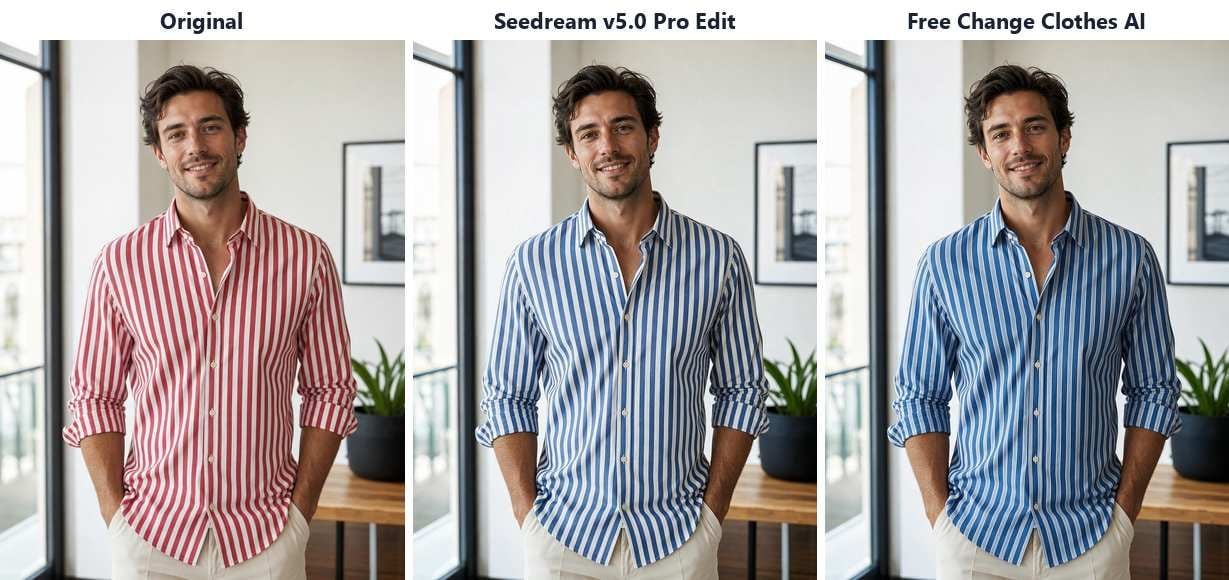
Flattened patterns. "A blue shirt" describes a plain shirt as readily as a striped one, so an instruction that skips the pattern is trusting the model's default. We fed exactly that lazy instruction to both the free tool and Seedream v5.0 Pro Edit against a red striped shirt, and the stripes survived in both outputs, though their spacing drifted a touch in one. That drift is the point: naming the pattern and its role, base color changes and stripes stay exactly as they are, turns a default you got lucky with into an instruction the model has to follow.
White to dark, dark to white. On paper these are the trickiest clothing color changes, because shadow information barely exists on white fabric and highlight information barely exists on black. Our own attempt passed on the first try: the black tank top came back cream white with its folds and dusk shading intact, and the instruction had "preserve natural fabric shadows and highlights" written into it. Keep that line in yours; if a run still lands grey or plasticky, start again from the most evenly lit photo you have.
Frequently Asked Questions
Is there a free way to change the color of clothes in a photo?
Yes. Atlas Cloud's Free Change Clothes AI runs in the browser, and your first generation is free at full resolution with no watermark.
Can I change clothes color without logging in?
No. The free generation is activated by signing in with Google, GitHub, or email, which the page says takes a few seconds. There is no anonymous mode; the sign-in is what unlocks the free run.
Does it work on patterned or striped clothing?
In our tests the stripes survived an instruction that never mentioned them, on both tools we tried, though two runs are not a rule.
Can I change the color of clothes in a picture on my phone?
Yes. The tool is a web page, so it runs in a phone browser without an install; upload from your camera roll and the steps are the same. Phone photo editors can also shift hue on simple solid garments, but selection work on a small screen is where that route gets slow.
Conclusion
Recoloring a garment used to mean either a reshoot or an evening of careful selection work, and now the honest answer is that it costs one sentence and about 40 seconds. The craft has moved into the prompt: name the garment, name the exact shade, and list everything that stays put. Get those three parts right and the folds, stitching, and light in your photo survive the swap.
Whether you need to change the colour of clothes on one photo or across a whole product line, start with the free run on Free Change Clothes AI, test your hardest garment first, and move to the API only when the volume demands it. The tool that proves itself on your striped shirt in a browser tab is the same one that will hold up across 8 colorways.