You can spend a night downloading 200GB of weights, or you can validate the shot in five minutes before touching your ComfyUI graph. That is the practical answer for anyone searching minimax h3 comfyui workflow right now.
MiniMax H3 is exciting because it joins open-weight local experimentation with text, image, video and audio conditioning. MiniMax says H3 outputs 4 to 15 second videos, 24 FPS, 32 kHz stereo audio, multiple aspect ratios and up to 2K through regeneration (MiniMax, August 2026).
The workflow below gives you 3 builds: a rainy laundromat T2V mood clip, a transparent-mouse I2V product clip, and a comic hero plus mecha Ref2V clip. Use Atlas Cloud to validate the prompt, camera language and spend first. Then move the winning settings into ComfyUI when you need a local reusable graph.
Key takeaways
- H3 has T2V, I2V/FL2V and Ref2V paths.
- Local ComfyUI gives graph control, but setup is heavy.
- Atlas Cloud is useful for quick 5s verification.
- No audio usually means VAE or SaveVideo wiring.
- Test 5s first, then scale to 15s or 2K.
MiniMax H3 T2V workflow result: rainy laundromat ambience from the public Atlas H3 demo page, kept as video because the source clip is over 10s.
Why the MiniMax H3 ComfyUI Workflow Is Hot, and Why First Attempts Fail
H3 landed in the ComfyUI world at the exact moment video creators were asking for more than pretty motion. They wanted a graph that can carry a prompt, a first frame, a last frame, multiple reference images, video references and audio references without rebuilding the whole pipeline for each job.
The official H3 release explains the split clearly: FL2VA covers text-to-audio-video and first/last-frame generation, while Ref2VA handles reference-based audio-video generation with images, videos and audio in the same context. The same release also says audio cannot be the only Ref2VA input. It must travel with an image or video reference.
Most failed MiniMax H3 ComfyUI workflow attempts come from small mismatches:
| Symptom | Likely cause | Fix |
|---|---|---|
| H3 nodes missing | ComfyUI is too old | Update to v0.30.0+ or the latest desktop build |
| Output has no sound | Audio VAE or SaveVideo path is missing | Load minimax_h3_audio_vae_fp32.safetensors and connect audio decode |
| I2V graph errors | Ref2VA and FL2VA checkpoint mixed | Use FL2VA for T2V/I2V/FL2V, Ref2VA for references |
| 256p run fails | Resolution is below H3's practical floor | Use 384p or higher presets |
| API JSON rejected | UI workflow JSON pasted into /prompt | Export the API-format graph instead |
The ComfyUI Wiki calls out the same operational traps: recent ComfyUI builds, both video and audio VAEs, correct checkpoint choice, and 384p minimum are not optional details (ComfyUI Wiki, August 2026). Treat them as preflight checks before spending a long local run.
MiniMax H3 ComfyUI Workflow Overview: Modes, Models, Prices
You can treat H3 as 3 routes in one browser tab during validation, then mirror the selected route inside ComfyUI. Atlas Cloud keeps the first pass simple: open the exact model page, paste the prompt, upload references where needed, read the Run button, and save the result.
| Goal | ComfyUI mode | H3 checkpoint / Atlas endpoint | Best use |
|---|---|---|---|
| Prompt-only clip | T2V | MiniMax H3 Text-to-Video | Mood reel, concept shot |
| Animate a still | I2V / FL2V | MiniMax H3 Image-to-Video | Product, storyboard, key art |
| Use references | Ref2V | MiniMax H3 Reference-to-Video | Character, location, voice, style refs |
| Model | Listed price checked August 26, 2026 | Discount |
|---|---|---|
| MiniMax H3 Text-to-Video | From $0.1/sec on models/all | No discount shown |
| MiniMax H3 Image-to-Video | From $0.1/sec on models/all | No discount shown |
| MiniMax H3 Reference-to-Video | From $0.1/sec on models/all | No discount shown |
| GPT Image 2, optional first-frame generator | From $0.009/image for text-to-image, developer tier from $0.004/image | Discount shown on developer tier |
Use local ComfyUI when you need pipeline ownership, repeatable node graphs and custom pre/post processing. Use Atlas Cloud hosted H3 when you need a fast verification path, a hosted H3 playground and a quick read on budget before burning local GPU time.
Step 1: Update ComfyUI and Pick the MiniMax H3 Workflow
Start by updating ComfyUI, then search the template library for MiniMax H3. Pick the workflow that matches your input, not the output you wish you had.
Prompt to copy for your first graph note:
Plain1Goal: MiniMax H3 local verification. 2Mode: choose T2V for prompt only, I2V/FL2V for first frame or first plus last frame, Ref2V for ordered image/video/audio references. 3Checkpoint rule: FL2VA for T2V/I2V/FL2V, Ref2VA for reference-to-video. 4Audio rule: connect both Video VAE and Audio VAE before SaveVideo.
Settings to pick: use the latest ComfyUI desktop build or v0.30.0+, install the official H3 templates, and keep your first run at about 5s. In the local baseline, set length to 124 frames for about 5s at 24 FPS, 20 steps, sampler res_multistep, scheduler simple, and denoise 1.0.
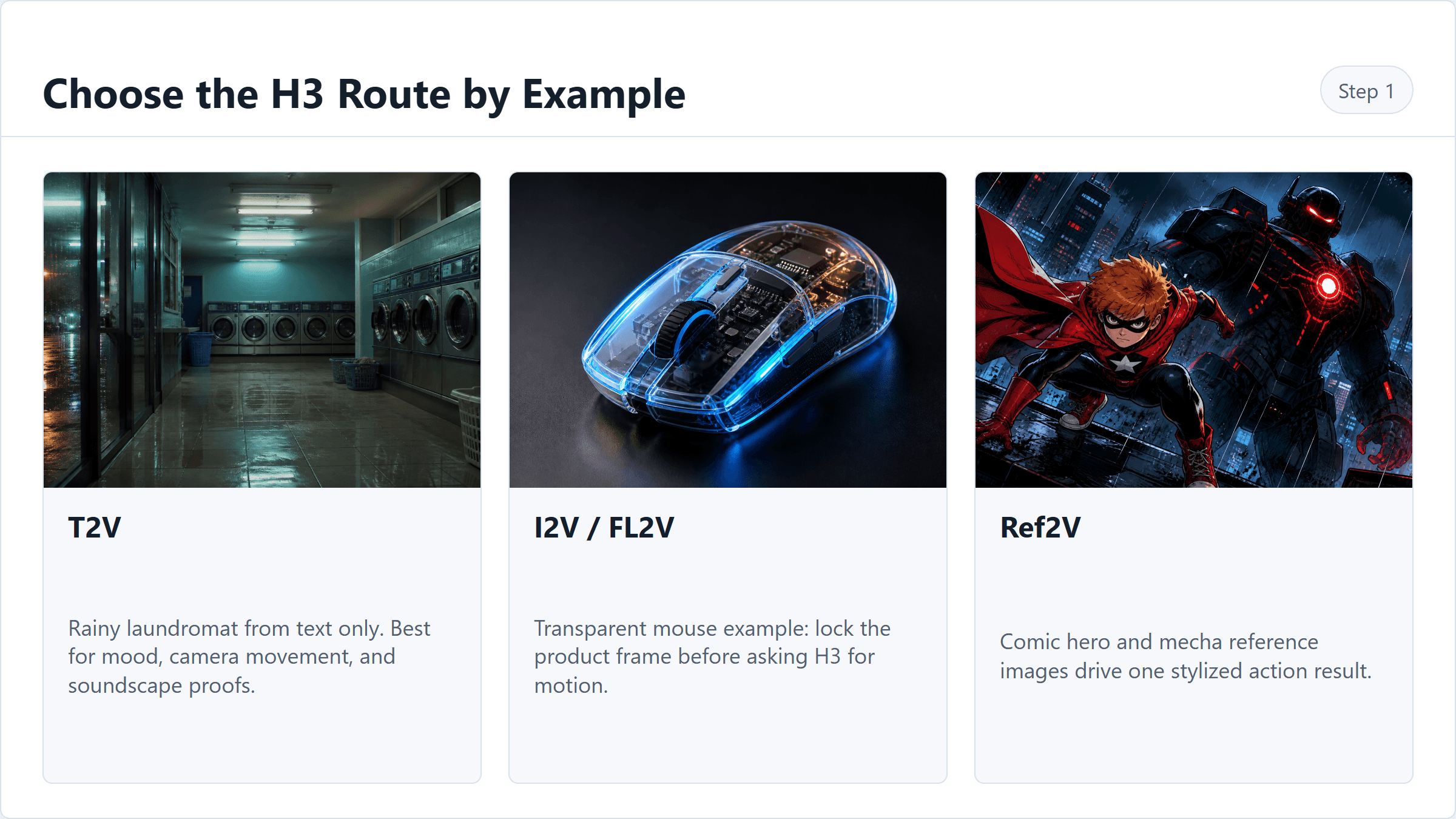
MiniMax H3 ComfyUI workflow route map for T2V I2V and Ref2V
MiniMax H3 ComfyUI route map: pick T2V, I2V/FL2V or Ref2V before downloading model files.
Step 2: Verify the T2V Prompt on MiniMax H3 Text-to-Video
Open the H3 text-to-video playground and validate the simplest version first. The laundromat prompt is a good H3 test because it asks for handheld camera motion, reflections, machines in motion and a coherent soundscape.
Prompt to copy:
Plain15-second 16:9 cinematic short video. A late-night self-service laundromat after rain, fluorescent lights gently flickering, washing machines spinning, plastic baskets on the floor, wet reflections on the glass door. Handheld phone footage, subtle camera shake, slow side-step camera movement from the entrance toward the machines, realistic exposure breathing, no text, no subtitles, no logos. 2 3overall_soundscape: soft washing machine rumble, distant rain on pavement, faint fluorescent buzz, no music. 4 5non_diegetic_music: none.
Settings to pick: MiniMax H3 Text-to-Video, 5s, 16:9, 2K if the control is available, watermark off if available, seed fixed if the UI exposes seed.
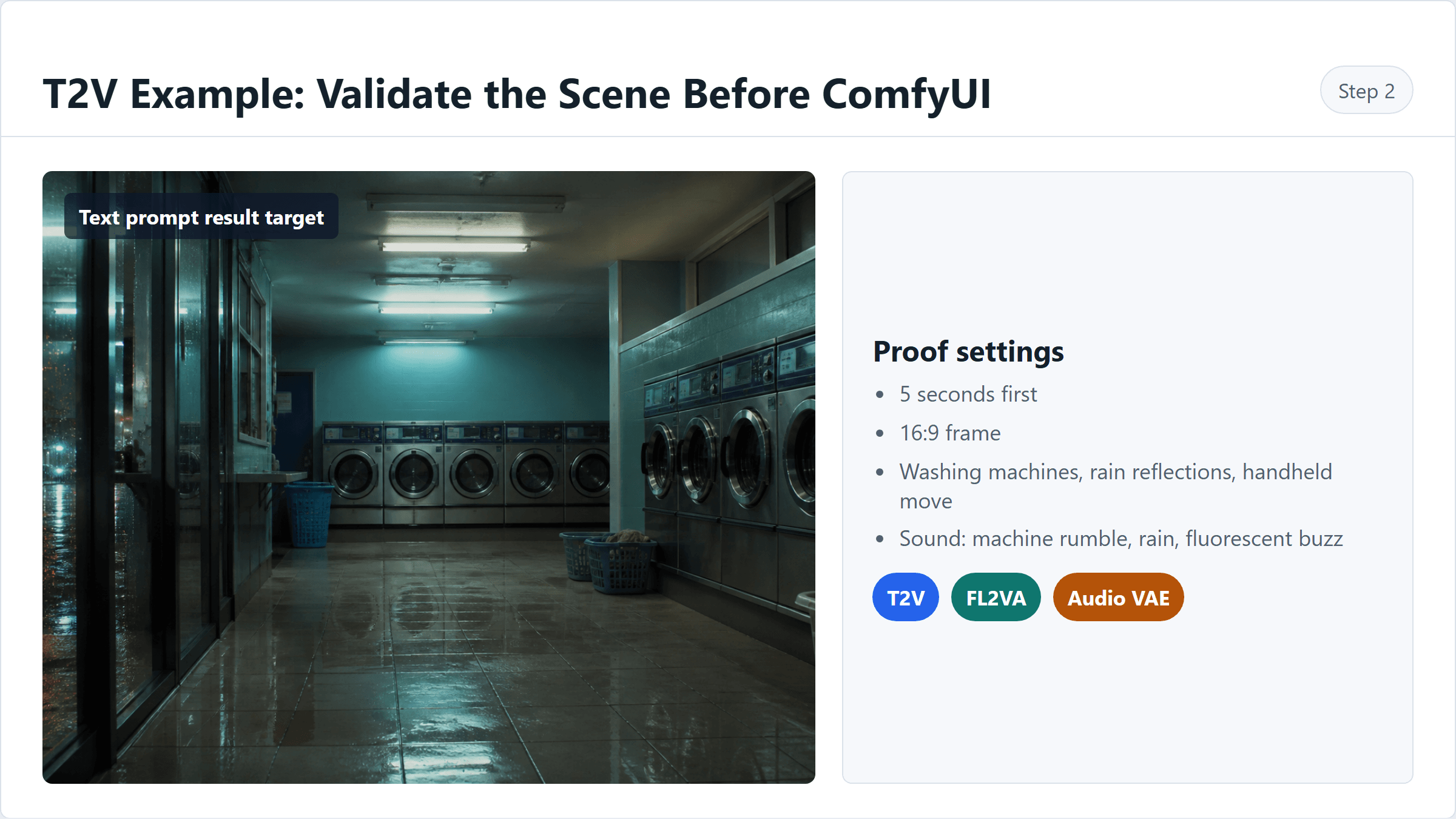
MiniMax H3 T2V proof flow from prompt to hosted check to ComfyUI settings
T2V proof flow: validate the laundromat prompt first, then copy the settings into ComfyUI.
ComfyUI mapping: use MiniMaxH3ImageToVideo with first_frame and last_frame unconnected, width 1280 or 1344, length 124, FPS 24, sampler res_multistep, scheduler simple, steps 20.
Step 3: Create a First Frame for the MiniMax H3 ComfyUI I2V Workflow
For product work, generate or import a clean first frame before asking H3 for motion. A good first frame locks the object, lighting and frame geometry so I2V has less to invent.
Prompt to copy:
Plain1A transparent gaming mouse on a dark reflective studio surface, visible internal parts, glossy clear shell, blue ambient glow and warm amber accents, three-quarter macro product angle, subtle water droplets, shallow depth of field, no logo, no subtitles, no extra objects, 16:9.
Settings to pick: GPT Image 2 text-to-image, high quality, 16:9, 2048x1152 or the highest 16:9 option that actually commits in the playground.
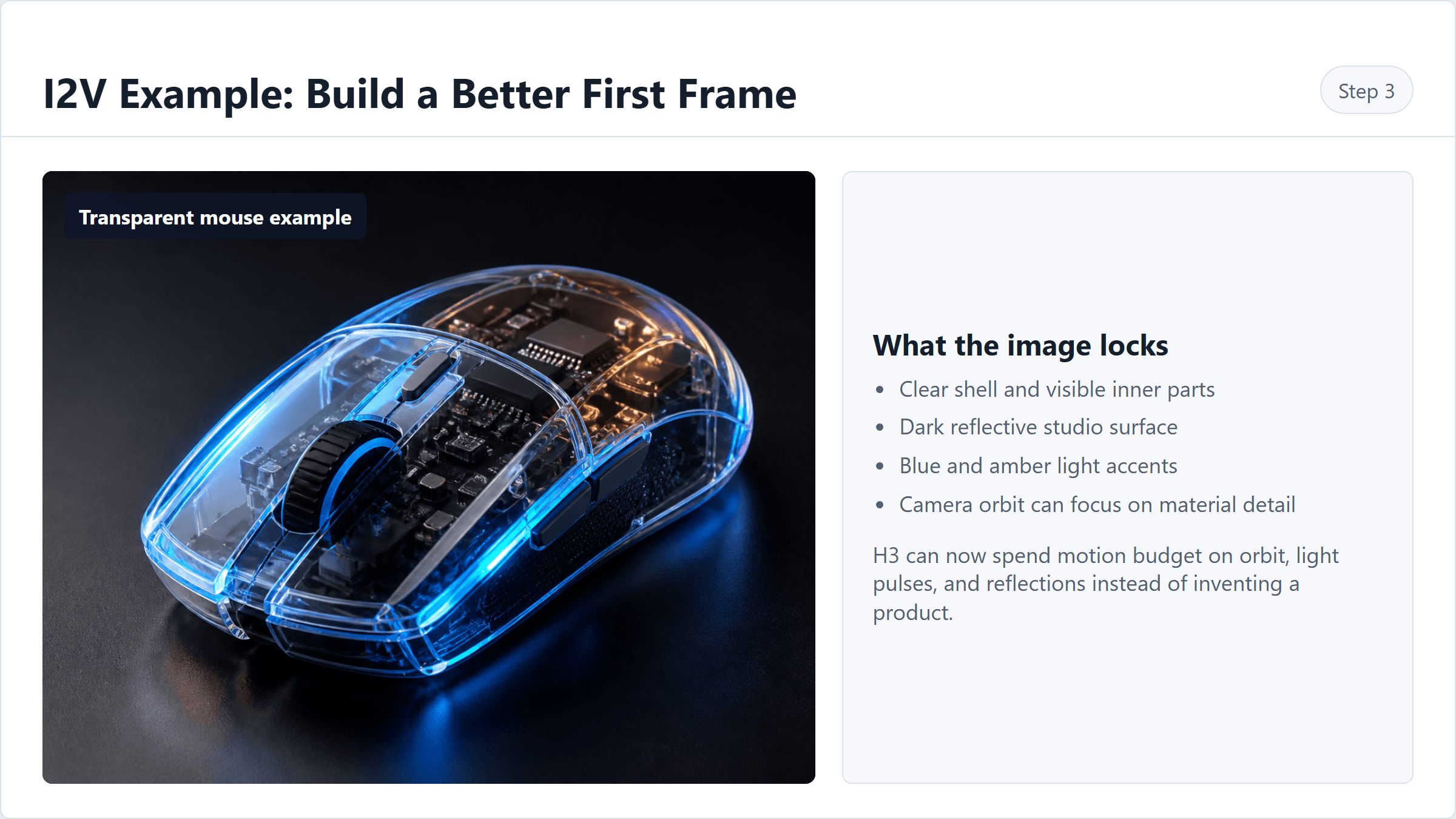
MiniMax H3 ComfyUI I2V first-frame checklist for a transparent mouse example
First-frame checklist: lock the transparent mouse, material detail, lighting and clean background before I2V.
Step 4: Run the MiniMax H3 Image-to-Video Workflow From That First Frame
Upload the product still into H3 image-to-video. Keep the prompt narrow: one object, one camera path, one light behavior, one short sound design idea.
Prompt to copy:
Plain15-second product film from the supplied first frame. The transparent gaming mouse remains the same object and shape. Camera makes a smooth low orbit from front-left to side-right while the clear shell catches blue and amber highlights. Reflections move across the dark surface, background stays minimal, no text, no subtitles, no extra objects. 2 3overall_soundscape: soft electronic hum, one subtle click at the midpoint, light studio room tone. 4 5non_diegetic_music: restrained low synth pulse, very quiet.
Settings to pick: MiniMax H3 Image-to-Video, first frame uploaded, 5s, adaptive or 16:9, 2K if available, watermark off if available.
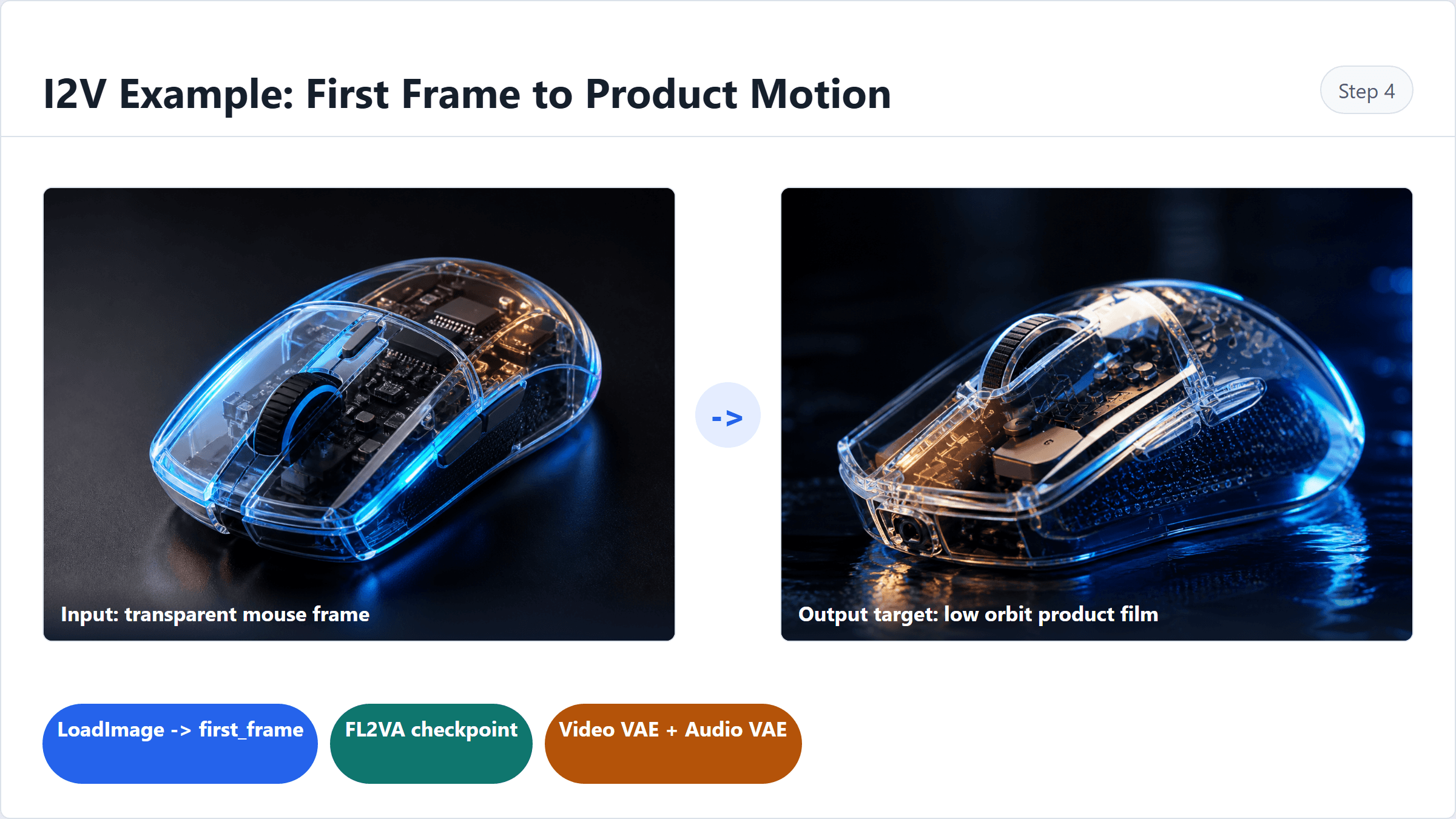
MiniMax H3 ComfyUI I2V node mapping for product first-frame animation
I2V node mapping: connect the first frame, use FL2VA, and keep audio/video decode wired.
ComfyUI mapping: connect LoadImage to first_frame; leave last_frame empty unless you are testing FL2V. Use the FL2VA checkpoint, not Ref2VA.
Step 5: Run the MiniMax H3 Reference-to-Video Workflow With Multiple References
Ref2V is where H3 gets interesting and easy to misuse. Use a small ordered set first: character, antagonist, output style. The Comfy Cloud node reference says Ref2V can take up to 9 images, 3 videos and 3 audio clips under a 12 file cap, and prompt order names such as Image 1 matter (Comfy Cloud, August 2026).
Prompt to copy:
Plain15-second 16:9 comic-book action video using the supplied references. Image 1 is the red superhero identity and costume. Image 2 is the black mecha enemy silhouette and glowing core. Image 3 is the bold comic action-frame direction. The hero looks up from a city rooftop while the mecha figure rises behind him, red and blue lighting stay consistent, inked edges remain crisp, no subtitles, no logos. 2 3overall_soundscape: rain on platform roof, distant train brake squeal, soft footsteps on wet concrete. 4 5non_diegetic_music: low suspense pad, minimal.
Settings to pick: MiniMax H3 Reference-to-Video, 2 or 3 reference images for tutorial clarity, 5s, 16:9, 2K if available, seed fixed if exposed. Name references in the prompt by order, not filename.
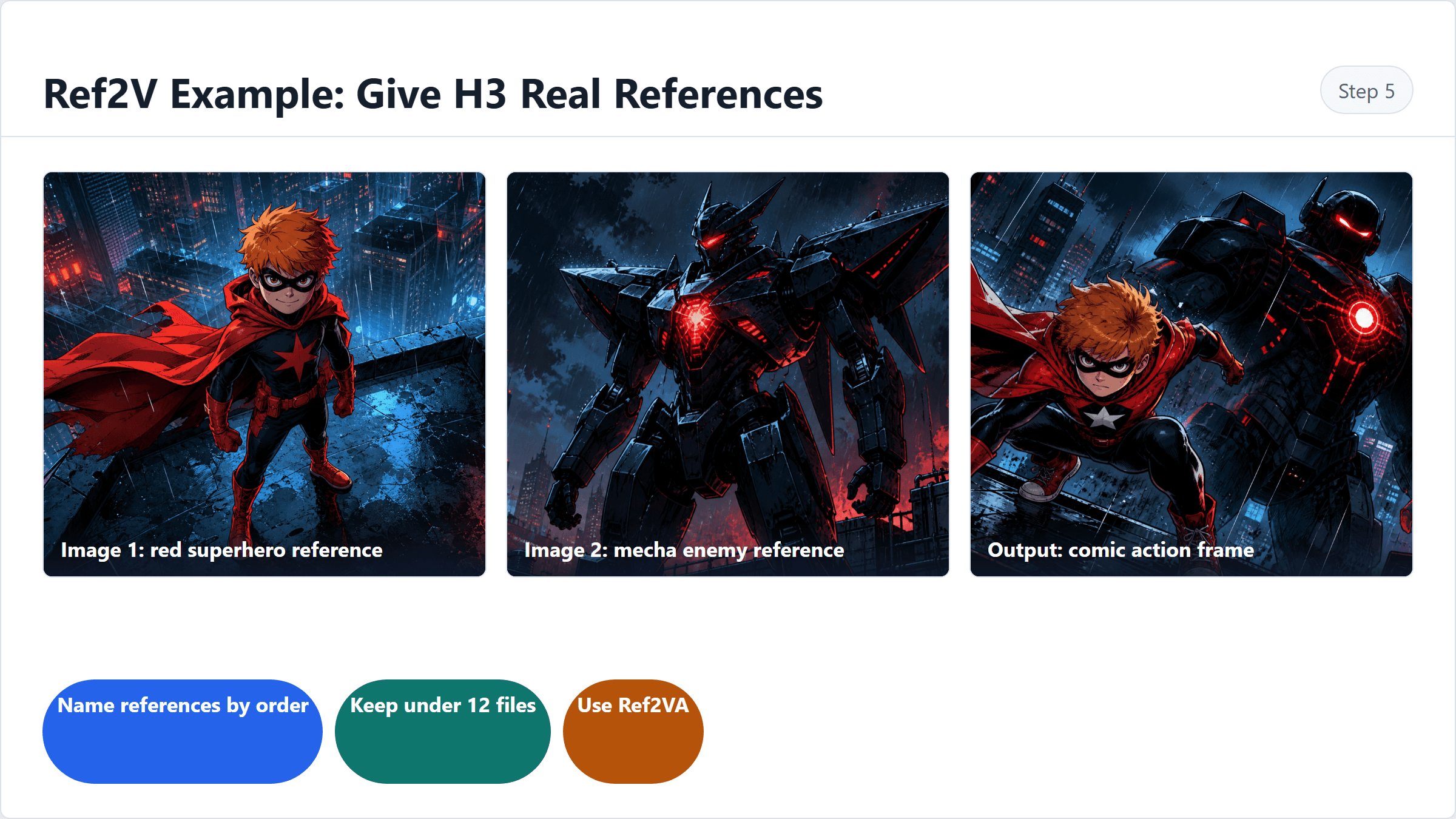
MiniMax H3 Ref2V ordered reference map for comic hero mecha enemy and output style
Ref2V reference order: Image 1 is the hero, Image 2 is the mecha enemy, and Image 3 is the output action-frame target.
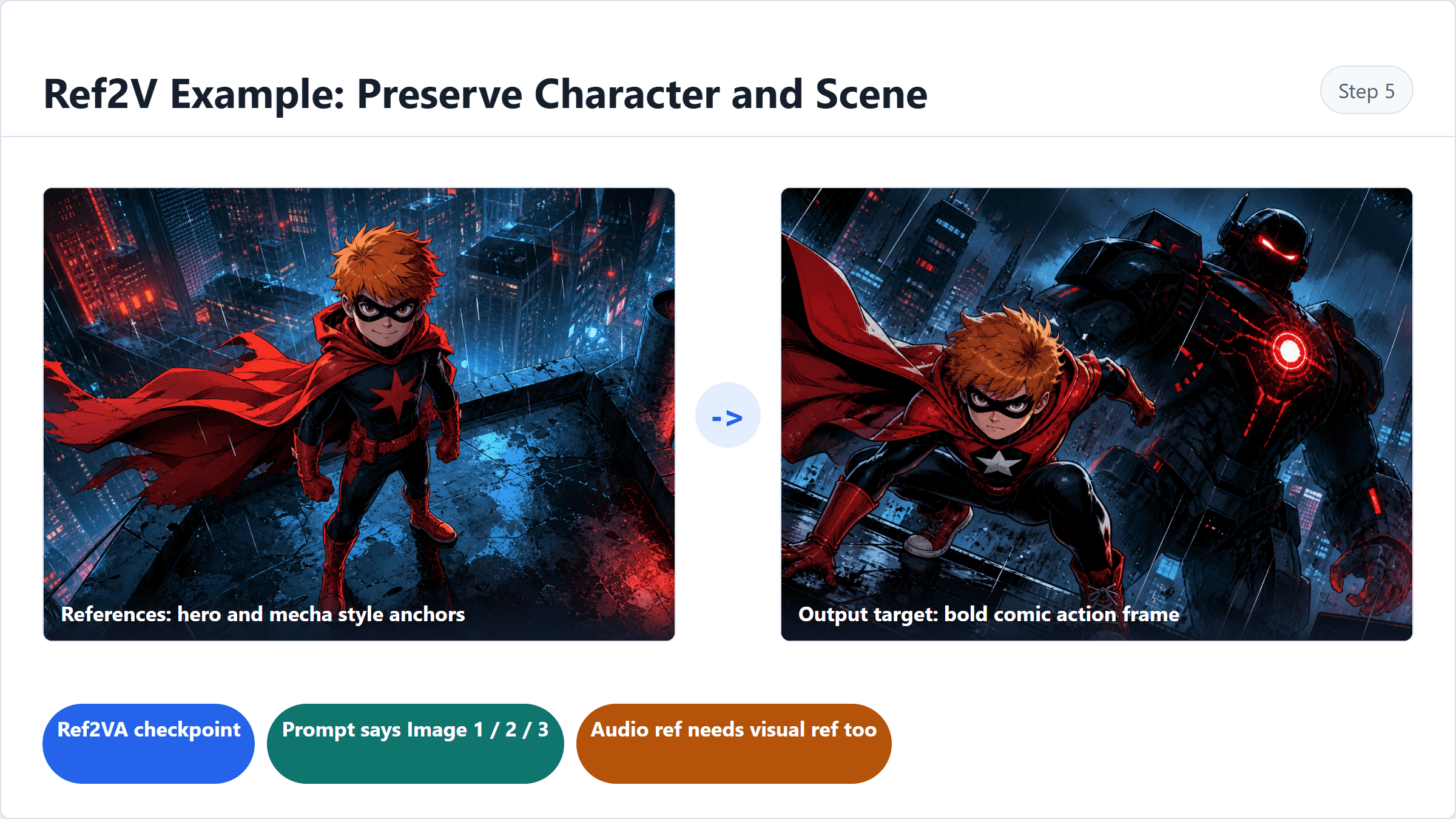
MiniMax H3 ComfyUI Ref2V mapping with reference checkpoint and prompt order
Ref2V mapping: use the Ref2VA checkpoint and keep the prompt's reference order aligned with the comic action example.
ComfyUI mapping: use the Ref2VA checkpoint. Add references in the same order used by the prompt. If you add audio, include at least one visual reference as well.
Step 6: Export or Save the MiniMax H3 ComfyUI Workflow
Save the graph only after the clip works once. If you plan to call ComfyUI programmatically, export API-format workflow JSON rather than the editor UI JSON.
Prompt to copy as a reminder inside your project notes:
Plain1Do not send ComfyUI editor workflow JSON to /prompt. 2Use the API workflow export. 3The API workflow is a flat node-id keyed object. 4Keep the model checkpoint, Audio VAE, Video VAE, SaveVideo and reference order together.
Settings to pick: store one JSON per mode, use a filename that records mode and date, and keep a short README with checkpoint names, duration, resolution and audio wiring.
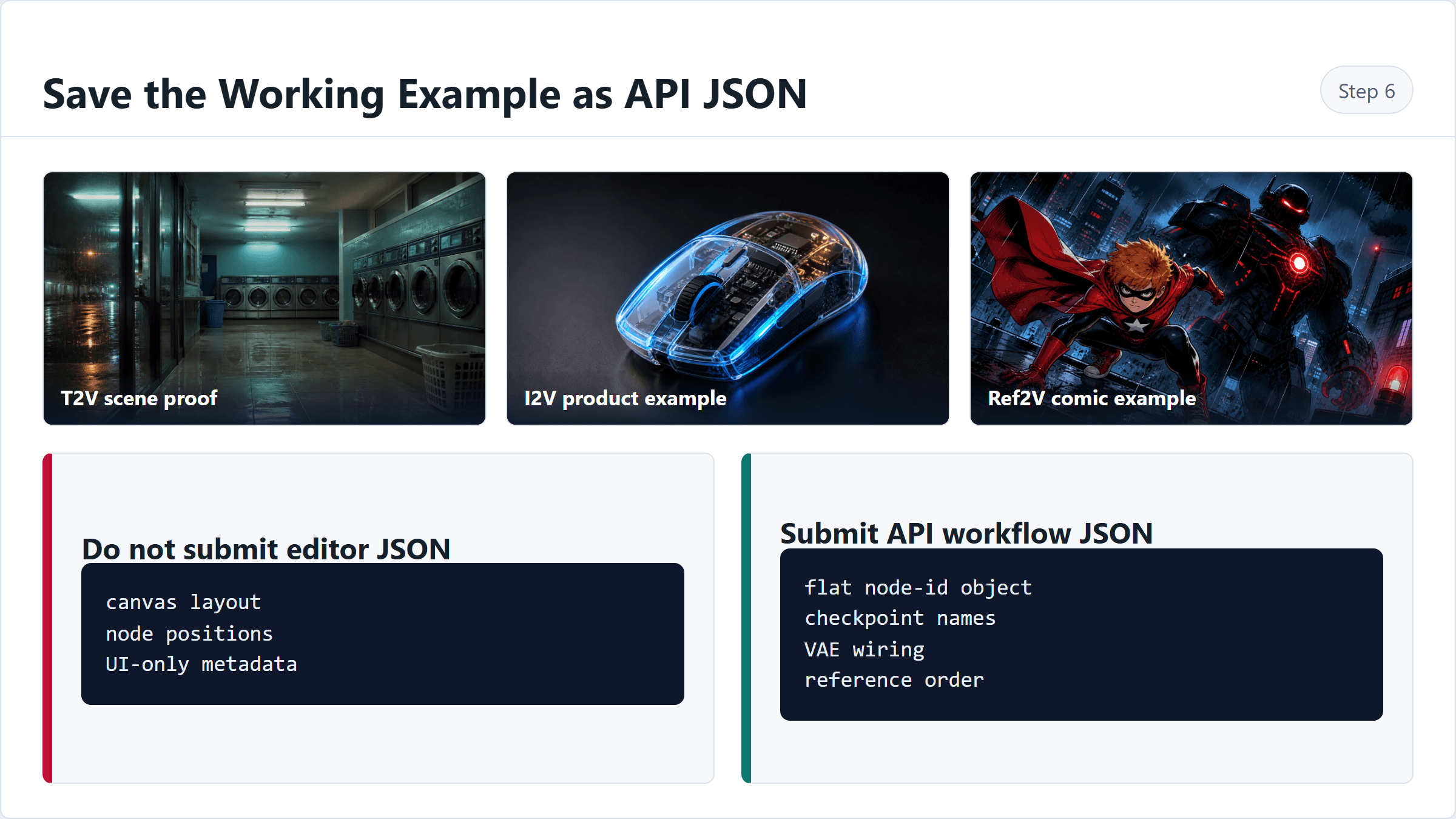
Rendered comparison card explaining MiniMax H3 ComfyUI UI JSON vs API workflow JSON
UI workflow JSON is for editing the graph. API workflow JSON is the flattened node object you submit to ComfyUI's /prompt endpoint.
MiniMax H3 ComfyUI Workflow Cost: Local GPU vs Atlas Cloud
The price math is simple only for the first test. Local ComfyUI costs time, disk, GPU memory and failed runs. Hosted verification costs money per second, but it gives you a quick yes or no before you commit to a local setup.
| Scenario | Local ComfyUI cost | Atlas Cloud verification cost |
|---|---|---|
| One 5s T2V idea | Download/setup overhead dominates | From $0.50 at $0.1/sec |
| Three 5s prompt tests | Local queue plus VRAM babysitting | From $1.50 |
| Client-ready 15s Ref2V | More failure cost, more setup | From $1.50 before refs/extras |
| Ongoing batch pipeline | Local can pay off | Hosted still useful for comparison and fallback |
For low-VRAM MiniMax H3 ComfyUI workflow tests, shorten duration first, reduce resolution second, and close local LLM or browser GPU consumers before loading H3 weights. Community 16GB workflows are useful signals, but treat them as machine-specific data rather than a universal benchmark.
Commercial work also needs a light paper trail. Keep the generation date, model name, terms URL, prompt, output filename and price snapshot. H3 weights and hosted API terms are separate legal objects, and this article is workflow guidance, not legal advice.
Frequently Asked Questions
What is a MiniMax H3 ComfyUI workflow?
A MiniMax H3 ComfyUI workflow is a node graph that runs H3 text-to-video, image-to-video, first/last-frame video or reference-to-video generation. The practical version includes the right checkpoint, text encoder, Video VAE, Audio VAE, prompt, duration, resolution and SaveVideo path.
Which MiniMax H3 ComfyUI workflow should I start with?
Start with T2V if you only have a prompt. Start with I2V if you already have a storyboard frame, product still or key art. Start with Ref2V when you need identity, location, voice or style references to stay connected in one generation.
Why does MiniMax H3 output no audio in ComfyUI?
Check the Audio VAE first. The common fix is loading minimax_h3_audio_vae_fp32.safetensors, decoding audio with the right node, and connecting it into SaveVideo with the video stream.
How much VRAM do I need for MiniMax H3 in ComfyUI?
Plan around high memory pressure. Some community workflows target 16GB cards with INT8 or NVFP4 builds, shorter duration and reduced resolution, but your system RAM, ComfyUI build and other GPU processes matter. Test 5s before trying longer clips.
Can MiniMax H3 Reference-to-Video use audio by itself?
No. MiniMax's release notes say Ref2VA audio references must be accompanied by image or video input. Use audio to guide a character, scene or edit, not as the only reference.
Is Atlas Cloud a replacement for local MiniMax H3 ComfyUI?
It can be, if your goal is fast hosted H3 generation or an OpenAI-compatible fallback. For local graph ownership, use Atlas Cloud to validate the minimax h3 comfyui workflow first, then move the proven prompt, references and settings into ComfyUI.